¶ Getting Set Up on Claude and ChatGPT
Start here: Sign in with your BoxHouse org account (not a personal one), then connect the BoxHouse Wiki using the steps below so the assistant can pull answers straight from our internal documentation.
¶ Purpose
This page walks you through getting set up on our two AI assistants — Claude and ChatGPT — using your BoxHouse account, and connecting the BoxHouse Wiki so the assistant can pull answers straight from our internal documentation.
¶ Before You Start
- Use your BoxHouse organization account, not a personal login. Connectors and shared tools only work on the org account.
- The BoxHouse Wiki is an internal knowledge source. Anything you ask it to pull is real company documentation, so treat answers the same way you'd treat the wiki itself.
- Setup takes about a minute per platform. You only do it once per account.
¶ Claude
¶ 1. Sign In
Sign in to Claude with your BoxHouse org account.
¶ 2. Connect the BoxHouse Wiki
The wiki has already been added at the organization level, so you don't need to create anything — you just need to connect to it on your own account.
Heads-up: The BoxHouse Wiki is a custom connector, so it will not show up if you search the connector directory. Look for it in your Connectors list (it appears under a "Custom" label), or just trigger it by asking a wiki question as described below.
The reliable way to connect — and the way that avoids the confusing errors a few people hit during rollout:
- Make sure you're signed in with your BoxHouse (org) Claude account.
- Close all open Claude windows, then open a fresh window and start a new chat. (Trying to connect in the middle of an existing chat is what causes the errors.)
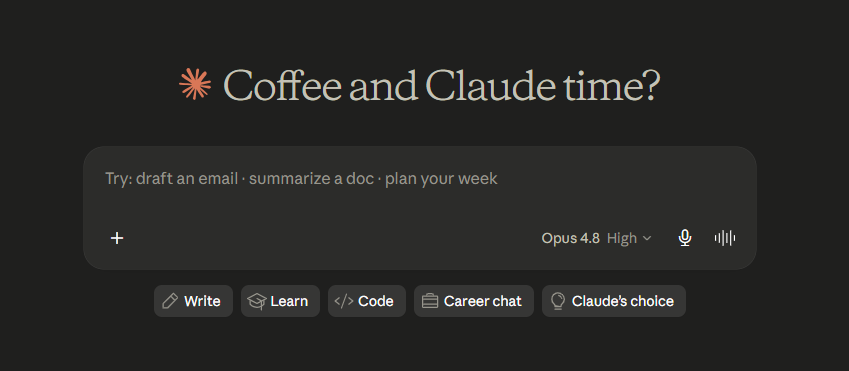
- Ask Claude something that uses the wiki — for example:
"Search the BoxHouse Wiki for our onboarding process and summarize it."
- The first time, a prompt will pop up asking you to allow the connection. Click Allow — you'll likely be asked twice, so click Allow both times.
That's it. Once you've allowed it that first time, you're good to go and won't be asked again.
Don't panic at the second prompt. It's normal to get the Allow prompt twice in a row. That double-prompt is not a sign that something failed — just click Allow again and you're connected.
¶ 3. Using It
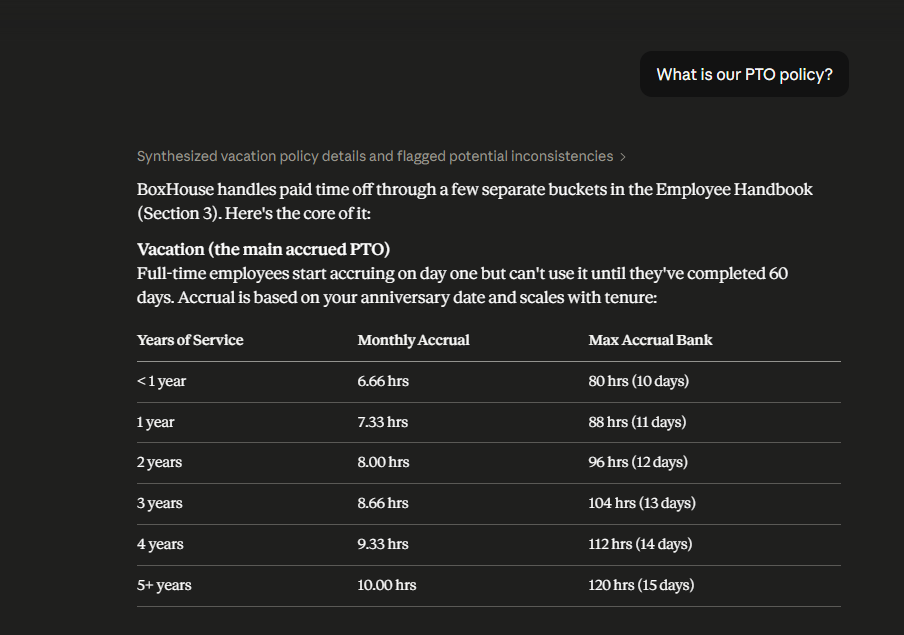
Once you're connected, you don't have to spell out "use the wiki" every time — just ask your question naturally and it'll pull from the wiki on its own. A few examples:
- "What's our offboarding process?"
- "Give me the highlights of our HR procedures."
- "Is there a wiki page on [topic]? Link me to it."
¶ ChatGPT
Note: ChatGPT calls connectors "apps." Connecting the wiki is a one-time setup — you only do this the first time you use it.
¶ 1. Connect the BoxHouse Wiki
- Open a new window and new chat.
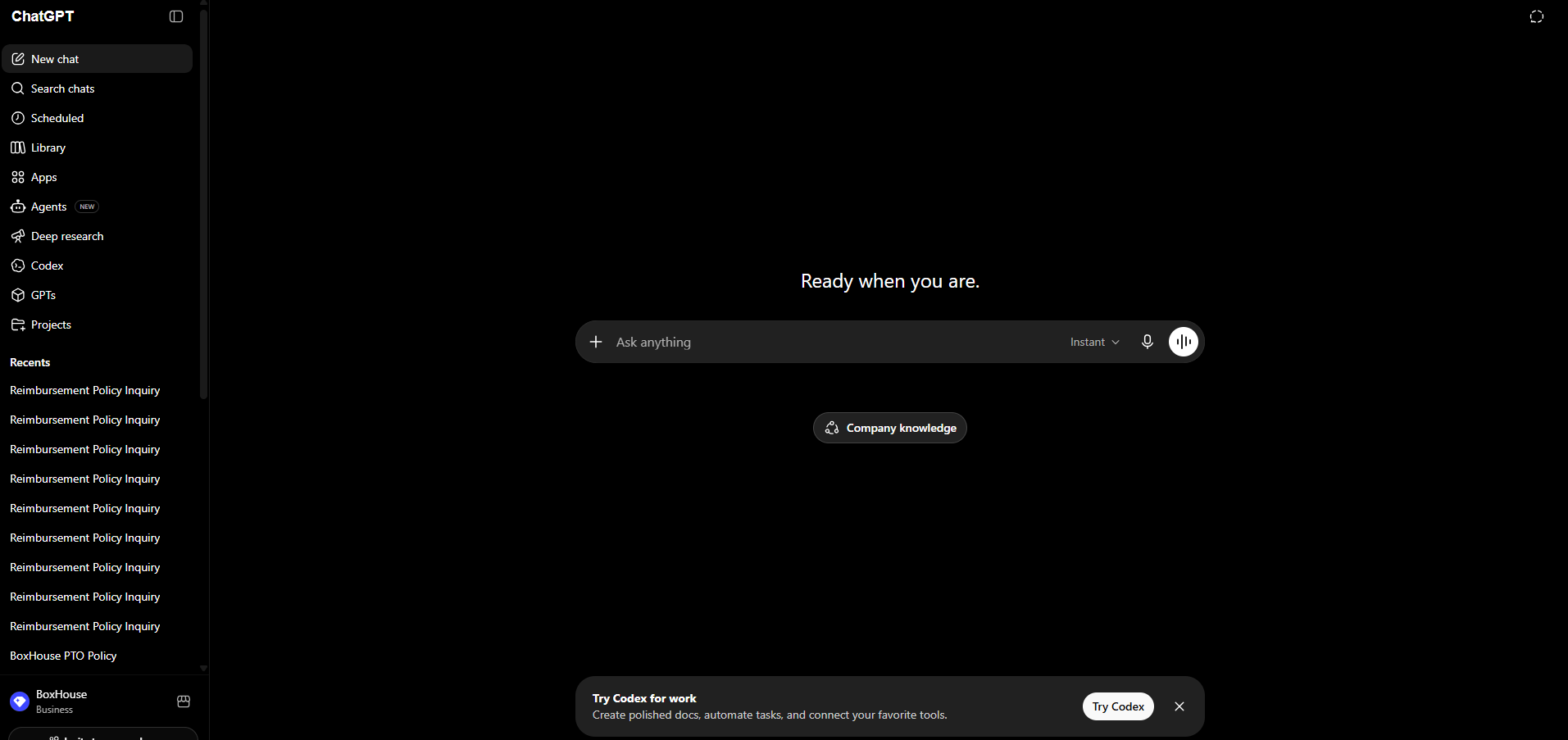
- Locate Apps on the toolbar on the left-hand side of your screen and open it.
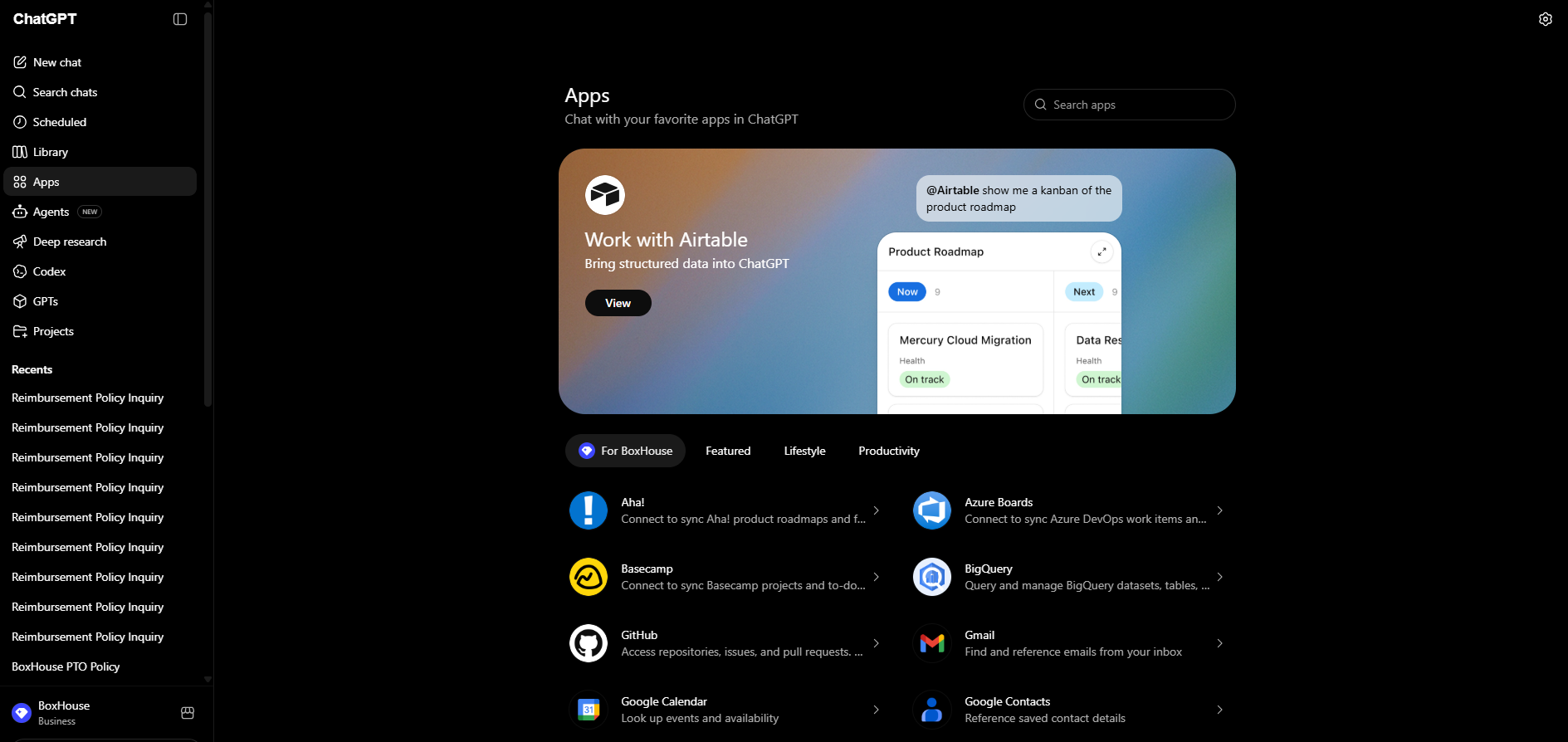
- Search BoxHouse Wiki.
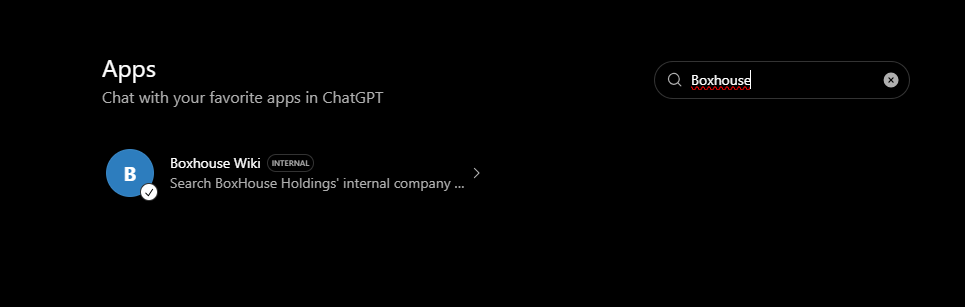
- Add it by hitting Connect.
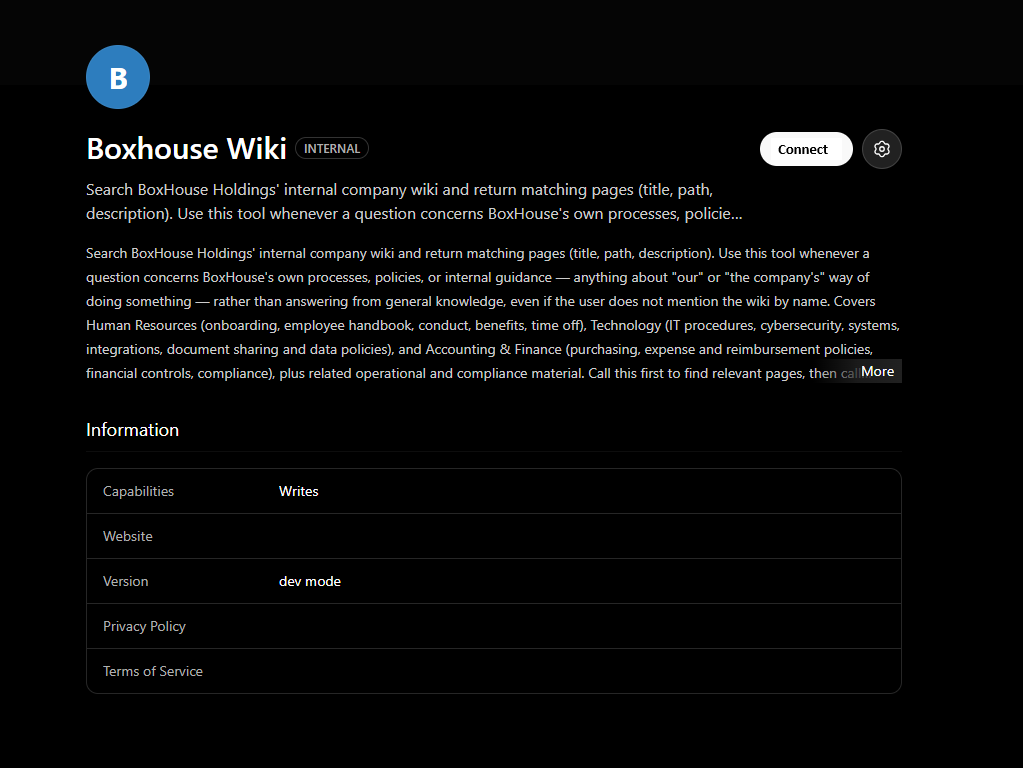
- In the pop-up screen, hit the Connect button and let it load.
- Once it has loaded, hit Start chat and ask your question.
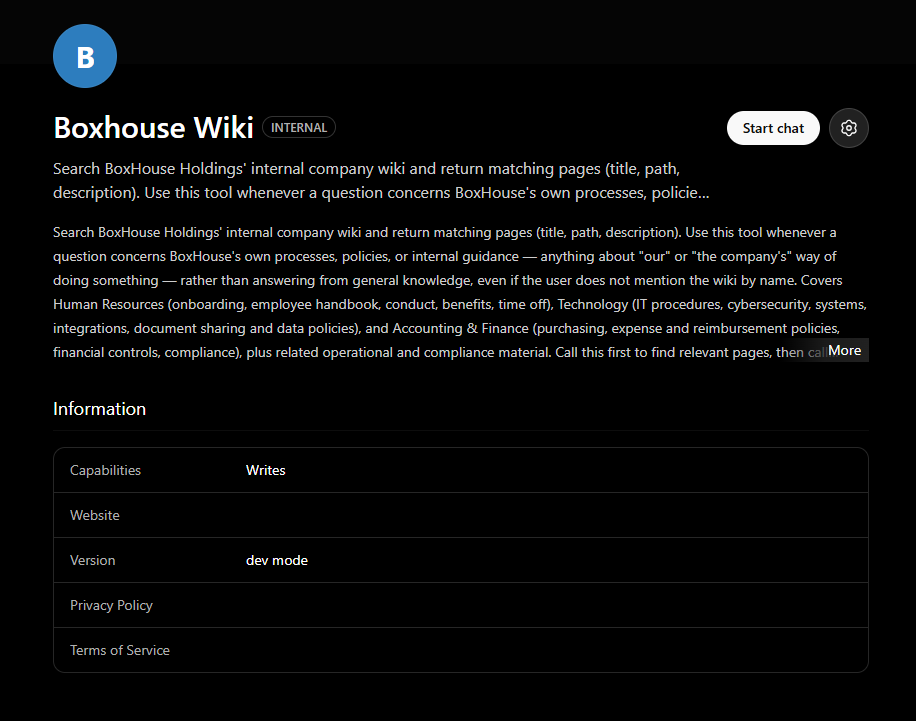
That's it — this only happens the first time you use it. After that, the wiki is ready whenever you need it.
¶ 2. Using It
Same idea as Claude — once it's connected, just ask your question naturally and it'll pull from the wiki on its own. For example:
"What's our process for [topic]?"
¶ Troubleshooting
If anything doesn't work — the connector won't show up, you hit an error, or a step doesn't match what's on your screen — please contact the Technology department. We'll sort it out for you.
Please don't change any settings on your account or try to add or remove connectors yourself. If something looks off, reach out and we'll fix it for you.
¶ Questions?
If you hit a snag getting set up, please reach out to the Technology department — we're happy to walk through it with you and get you connected!