¶ Making Sure You Get Your ClickUp Notifications
Purchasing › Purchase Requests › Approvals
The purchase request approval flow reaches you two ways: an email and an in-app notification in ClickUp. If either of those has been turned down, muted, or filtered, approval requests can land on you silently — and a request you never saw will keep escalating until it eventually pings your supervisor and then the Controller. This page shows you how to check your settings and make sure the pings are actually getting through.
You only need to do this once. Five minutes now saves you from chasing (or being chased about) requests later.
¶ The One Thing That Matters
Keep Email notifications on, and don't disable the triggers for assignments, assigned comments, and mentions. Those are the ones the approval flow uses to reach you.
Everything below is just how to confirm that.
¶ Where To Find Your Notification Settings
- Click your personal avatar in the corner of ClickUp.
- Select Settings.
- Open the Notifications tab in the settings sidebar.
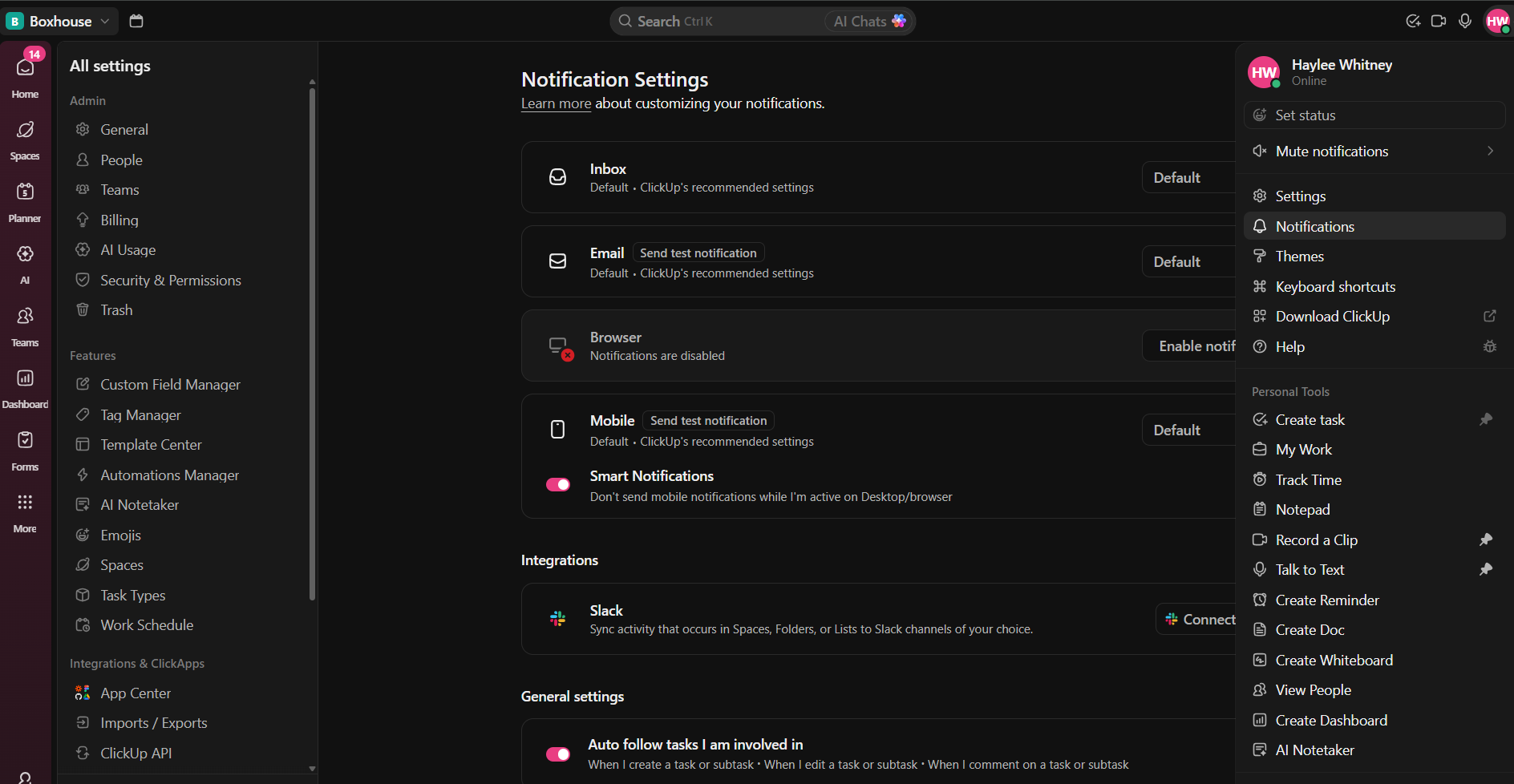
You can't change these on the phone app. ClickUp only lets you edit notification settings from a web browser or the desktop app — the mobile app can receive notifications but can't edit the settings. If you're a mobile-first user, hop on a computer for this one-time setup.
Also worth knowing: these settings are per person and per Workspace. Make sure you're in the BoxHouse workspace when you set them, and know that changing yours doesn't change anyone else's.
¶ What To Check
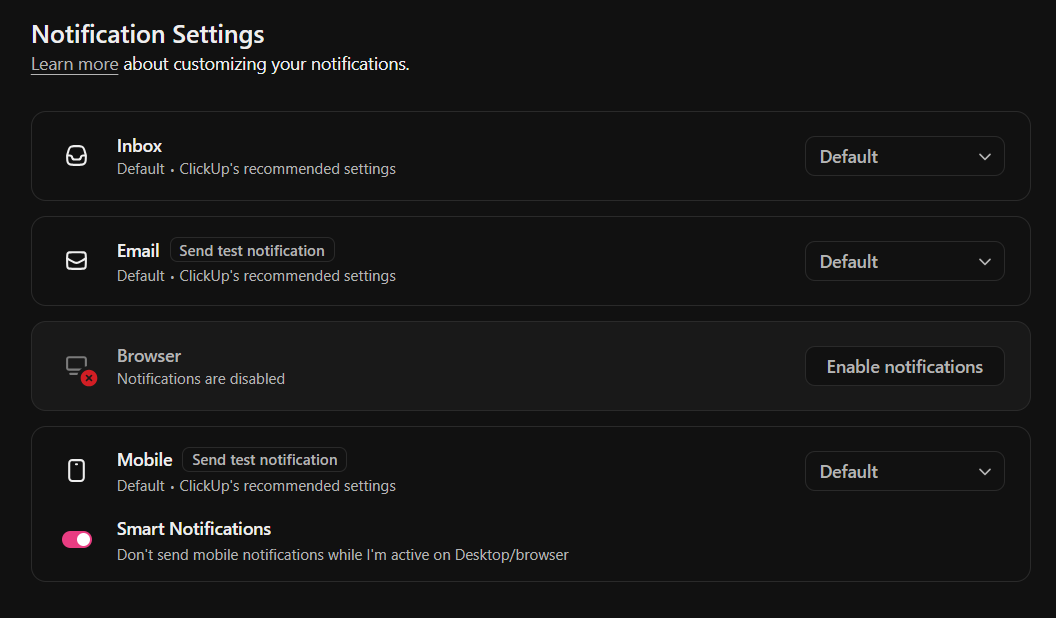
On the Notifications page you'll see separate columns/dropdowns for each channel — Email, Browser, Desktop, and Mobile. For approvals, the two that matter most are Email and Browser/Desktop.
¶ 1. Make sure Email isn't switched off
Find the Email channel and open its dropdown. If it's set to Disable notifications, that's the problem — switch it to a preset that includes task activity, or choose Custom so you can turn on exactly what you want (next step). If you only ever want the essentials, that's fine, as long as assignments and comments stay on.
¶ 2. Keep these triggers enabled
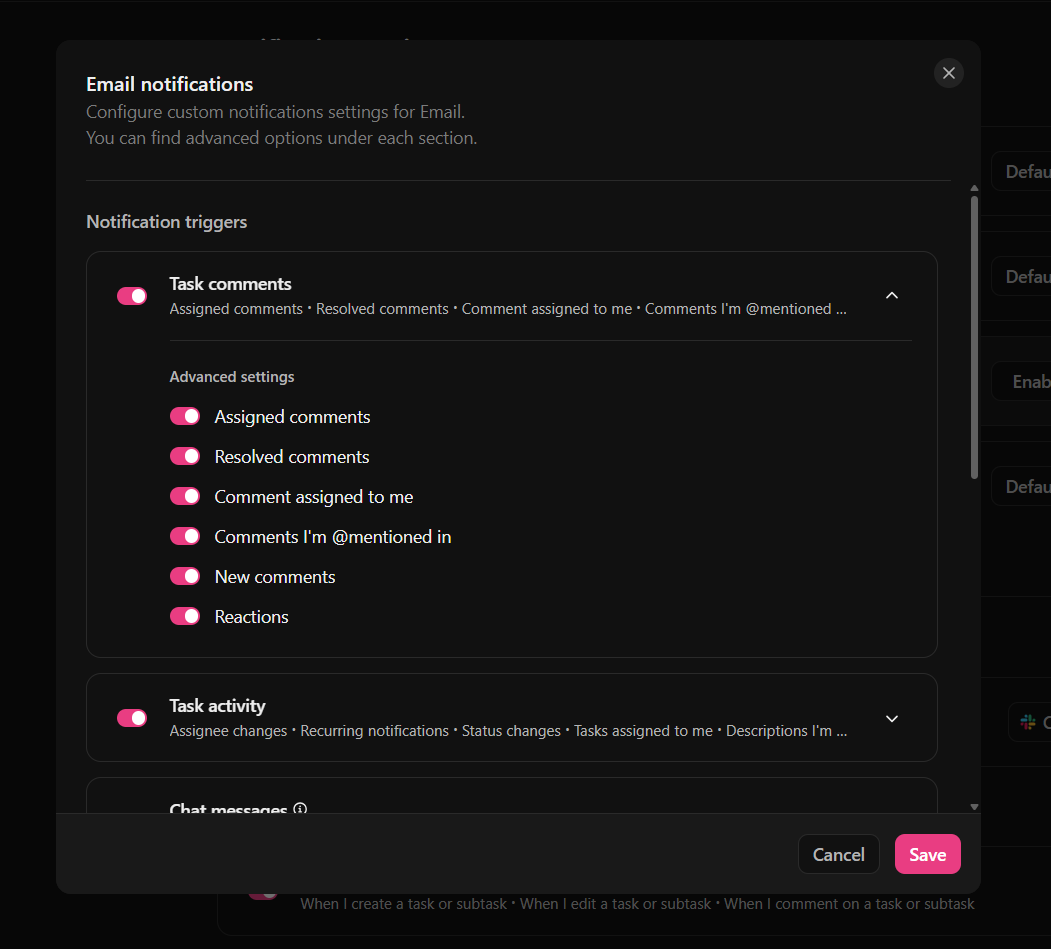
Whether you use a preset or Custom, make sure these stay on for Email (and ideally Browser/Desktop too):
| Trigger | Why you need it |
|---|---|
| Task assigned to me | You're set as the approver on the request — this is your main heads-up. |
| Assigned comments | The flow may drop a comment addressed to you asking for your decision. |
| Mentions (@you) | Anyone looping you in on a request. |
| New comments / status changes (optional but helpful) | Keeps you aware when a request you're on moves or gets a note. |
You'll notice some triggers have an asterisk (*) — those are required and can't be turned off. That's expected; leave them.
¶ 3. Send yourself a test
ClickUp has a built-in test notification button for each channel. Send yourself a test email and a test browser/desktop notification and confirm they arrive. If the email doesn't show up, see the gotchas below.
¶ Where Your In-App Notifications Show Up
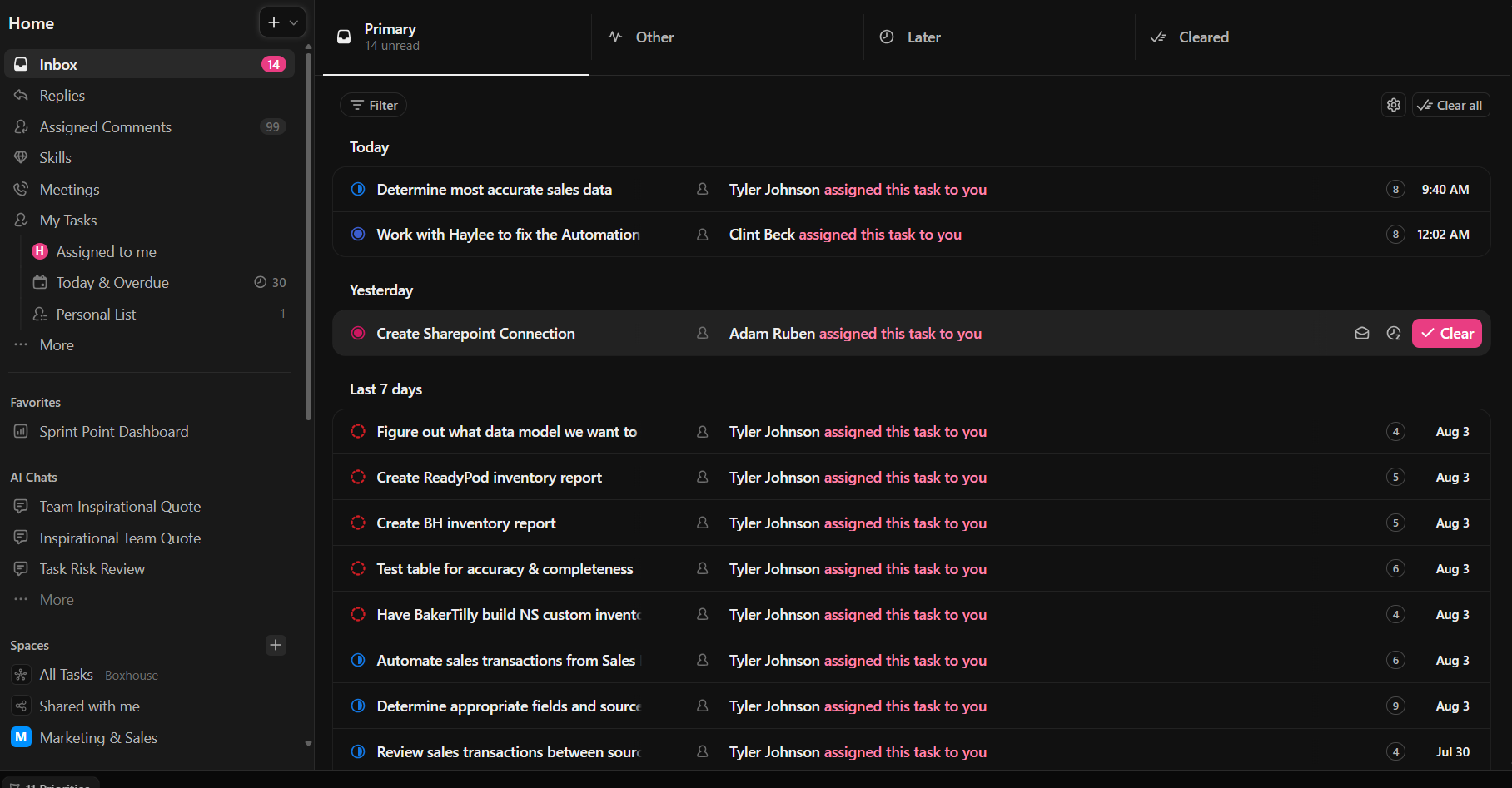
Inside ClickUp, your notifications collect in the Inbox (the bell/inbox icon). That's your backup if you miss an email — anything assigned to you or needing your decision will be waiting there. It's worth checking daily during the rollout.
¶ Common Gotchas
- "I'm not getting emails at all." Check that the Email channel isn't set to Disable notifications, then check your mail app's spam/junk folder and add ClickUp's sender address to your safe-senders list so future emails come straight through.
- "I get emails but no phone pings." ClickUp has a Smart Notifications setting that intentionally holds back mobile/device notifications while you're active in ClickUp on a computer. That's usually a feature, not a bug — but if you rely on your phone, you can adjust it in the same Notifications settings.
- "I muted this specific request/list once." Individual tasks and lists can be muted on their own, which overrides your global settings. Open the item and unmute it if a particular request has gone quiet.
- "I changed my settings but nothing happened." Double-check you were in the BoxHouse workspace when you saved — settings are per-workspace.
¶ Two-Minute Checklist
- Avatar → Settings → Notifications (on a browser or desktop, not mobile)
- Email channel is not set to Disable notifications
- Task assigned to me, Assigned comments, and Mentions are enabled
- Sent myself a test email and it arrived (checked spam if not)
- I know where my Inbox is for in-app notifications
¶ Questions?
- Notifications still not coming through after all this → contact Haylee Whitney (haylee@boxhouse.com).
- Related page: Manager Approval Training — what to actually do once a request reaches you.