¶ Purchasing in ClickUp — Space, Forms, Fields & Automation
A complete guide to how the Purchasing space is built and how a request travels from the intake form, through approvals, to a Purchase Order in NetSuite — including every field and every automation working behind the scenes.
¶ How it all fits together
There are three layers:
- The Purchasing space — where the work lives (folders, lists, forms).
- The fields — the structured information captured on each request.
- The automations — a set of ClickUp automations that hand work off to background workflows (built in n8n) to route approvals and create the NetSuite PO.
The big idea: you fill out a form and approve; the system does the routing, the reminders, and the NetSuite entry. Nothing gets re-typed into NetSuite by hand. (https://app.clickup.com/9011491691/v/fm/8cj0wvb-42951)
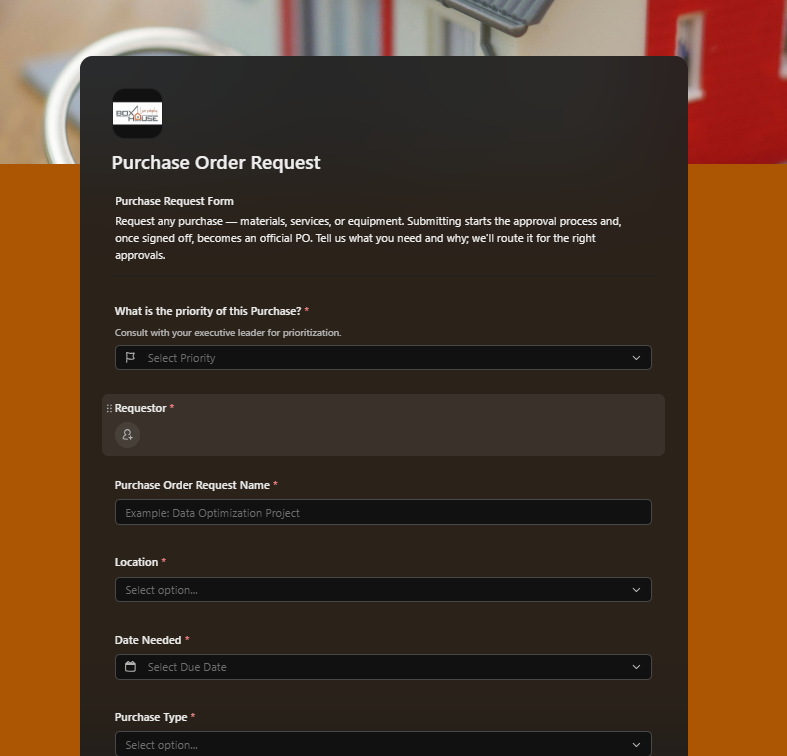
Journey at a glance: Submit form → Approval routing → Fully approved → "Create PO in Netsuite" → NetSuite PO created → Request marked Ordered
¶ 1. The Purchasing space
The Purchasing space is organized into six folders plus a couple of standalone lists:
| Folder | Lists | Purpose |
|---|---|---|
| Purchase Requests | Incoming Requests, Test Examples for Documentation | Where new requests are submitted (Test Examples is an internal demo/doc list) |
| Change Orders | Change Orders | Changes to already-issued POs |
| Purchase Orders | Open Purchase Orders | POs that have been created and are in flight |
| Receiving & Logistics | Deliveries & Expediting | Tracking deliveries and chasing what's late |
| Vendor Management | Approved Vendor List (AVL) | The approved vendors we can buy from |
| Sourcing | Sourcing Request | Requests to source/quote a new item or vendor |
| (standalone) | Payment Form Request, Received POs | Payment requests and received-PO tracking |
The star of this guide is the Incoming Requests list — that's where every purchase request begins.
¶ 2. The Incoming Requests list & the intake form
New requests are submitted through the intake form, which drops a new task into Incoming Requests. Each task is one purchase request, and its status always tells you where it is (approving, approved, ordered — see the status reference).
The form captures everything Purchasing and Accounting need so the request can be approved and turned into a NetSuite PO without back-and-forth. Those fields are below.
¶ 3. Field reference
Fields fall into two buckets: fields you fill in (on the form) and fields the workflow manages (filled automatically as the request moves).
¶ Fields you fill in
Request basics
| Field | Type | What it's for |
|---|---|---|
| 💲 Requestor | People | Who is asking for the purchase |
| 💲 Reason | Text | Short reason for the purchase |
| 💲 Justification | Text | Fuller business justification |
| 💰 Project ID | Text | Ties the spend to a project, if any |
Vendor & accounting — Full Vendor, Subsidiary, and Location drive the NetSuite PO header; the GL account is now set per line item (below)
| Field | Type | What it's for |
|---|---|---|
| 💰 Full Vendor | Dropdown (from NetSuite) | Who we're buying from — must be a NetSuite vendor |
| 💲 Subsidiary | Dropdown (from NetSuite) | Which entity is buying (e.g., BoxHouse Holdings Inc) |
| 💲 Location | Dropdown (from NetSuite) | Where it's going (e.g., BHH - Saipan) |
| 💲 Department | Dropdown | The requesting department (used in approval routing) |
Line items — what & how much (up to 4 lines per request)
A request can carry up to four line items, and each line has its own GL Code — so one request can split spend across multiple expense accounts. Set How Many Line Items? and the form reveals that many line blocks.
| Field | Type | What it's for |
|---|---|---|
| 💲 How Many Line Items? | Dropdown: 1 · 2 · 3 · 4 | How many lines this request has — progressively reveals Line 2/3/4 |
| 💲 Line N Description | Text | What this line is for |
| 💲 Line N Quantity | Number | How many |
| 💲 Line N Rate | Currency (USD) | Price per unit |
| 💲 Line N GL Code | Dropdown (from NetSuite) | The expense account this line posts to — pick a postable expense account (see Tips) |
| 💲 Line N Amount | Formula | Auto-calculated (Quantity × Rate) — you don't fill this in |
| 💲 Purchase Request Total Amount | Formula | Auto-sum of all line Amounts — the request's total |
(💲 Purchase Type — Service · Materials · PP&E — still describes the request as a whole.)
What & how much
| Field | Type | What it's for |
|---|---|---|
| 💲 Purchase Type | Dropdown: Service · Materials · PP&E | The nature of the purchase |
| 💲 Quantity | Number | How many |
| 💲 Rate | Currency (USD) | Price per unit |
| 💰 Amount | Currency (USD) | Total — also drives the approval threshold |
Purchasing method & terms
| Field | Type | What it's for |
|---|---|---|
| 💲 Purchasing Method | Dropdown: Purchase Order · Contract/Service Agreement · Credit Card · Reimbursement | Choose "Purchase Order" for anything that should become a NetSuite PO |
| 💲 Payment Terms | Dropdown: 1% 10 Net 30 · 2% 10 Net 30 · Due on Receipt · Net 15 · Net 25th of the Month · Net 30 · Net 60 · Other | When the vendor gets paid |
| 💲 Prepayment Required? | Checkbox | Whether a deposit/prepayment is needed |
| 💲 Prepayment Terms | Dropdown: 100% prepaid · 50/50 on delivery · 50/50 before shipment · 30/70 before shipment · 25/75 on completion · Deposit + balance on delivery · Milestone/progress · Other | The prepayment structure |
| 💲 Other Pre-Payment Terms | Text | Free text when "Other" is chosen |
| 💲 Check If Price Was Negotiated | Checkbox | Flags that pricing was already negotiated |
| 💲 Please Check If You Would Like Purchasing to Collect Bids | Checkbox | Asks Purchasing to gather competitive bids |
Delivery & logistics
| Field | Type | What it's for |
|---|---|---|
| 💲 Delivery Location | Location | Physical delivery address |
| 💲 Onsite Contact Name | Text | Who to reach at the delivery site |
| 💲 Delivery Onsite Contact | Phone | Their phone number |
Serialized inventory (for units we track by serial — ReadyPods, Boxhouse units, etc.)
| Field | Type | What it's for |
|---|---|---|
| 💲 Check If Serialized Inventory | Checkbox | Marks the purchase as serialized inventory |
| 💲 Serialized Category Item | Dropdown: ReadyPod · Boxhouse Unit · Container · PowerPod · Other | Which kind of serialized item |
¶ Fields the workflow manages
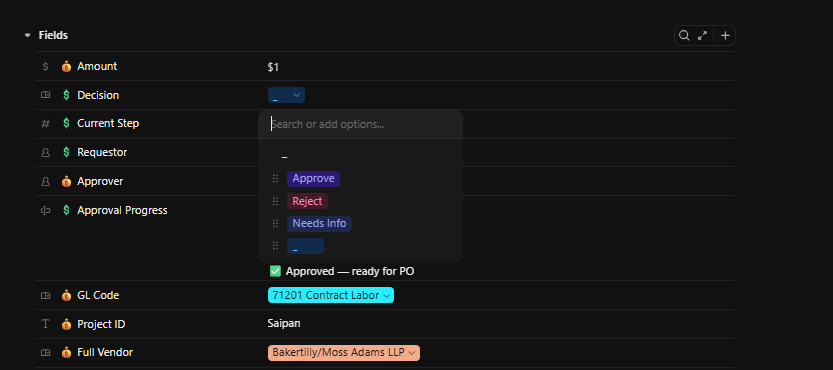
You'll see these on the task, but the automations keep them updated — you don't fill them out (except Decision, which approvers set, and PO Action, which Purchasing sets to create the PO).
| Field | Type | Who sets it | What it's for |
|---|---|---|---|
| 💰 Approver | Person | Automation | The current Purchasing approver / PO holder |
| 💲 Decision | Dropdown: Approve · Reject · Needs Info | Approver | How the current approver responds — this is what advances the request |
| 💲 Approval Progress | Text | Automation | The live, human-readable approval checklist |
| 💲 Approver Chain | Text (hidden) | Automation | The full list of approvers the request must pass, built at submission |
| 💲 Current Step | Number | Automation | Which step in the chain the request is on |
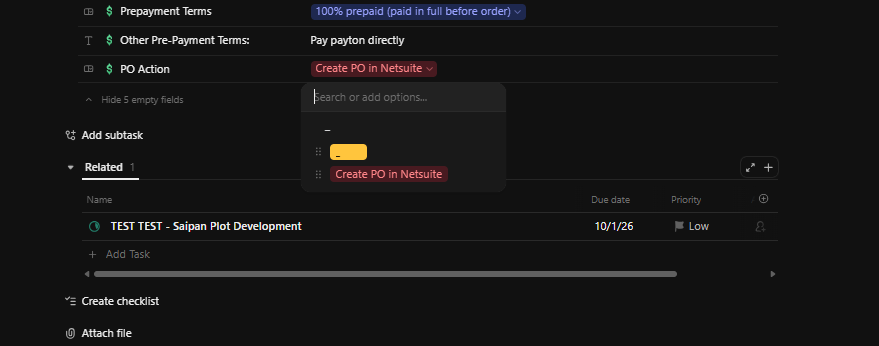
| 💲 PO Action | Dropdown: "Create PO in Netsuite" | Purchasing | The button that creates the NetSuite PO |
¶ 4. The automations
This is what makes the list feel "alive." A handful of ClickUp automations watch the request and, at the right moments, hand off to background workflows that do the heavy lifting. Here's each one, in plain terms.
¶ A. Intake — build the approval path (on submission)
When a request is submitted, an automation reads its Subsidiary → Department → Location → Amount and builds the exact list of approvers it needs, using a maintained approval matrix (59 approval bands in total). It removes any duplicate approvers, honors special routing rules for certain managers, sets the first approval step, and fills in the Approval Progress checklist. Approvers are looked up from a central people directory so the right individuals are always assigned.
Result: a brand-new request instantly knows exactly who needs to sign off and in what order.
¶ B. Approval routing — move it to the next person (on a decision)
Each time the current approver sets the Decision field, an automation advances the request:
- Approve → moves to the next approver in the chain. When the last approver approves, the status becomes approved - ready for po.
- Reject / Needs Info → routes back appropriately so it can be corrected or reconsidered.
Approval Progress and Current Step update on every decision, so anyone looking at the task sees exactly where it stands.
¶ C. Escalation ladder — keep things from stalling (time-based)
If an approval sits without a decision, timed reminders fire automatically:
- 24 hours — a first nudge to the approver
- 48 hours — a second nudge
- Day 5 — the approver's supervisor is added
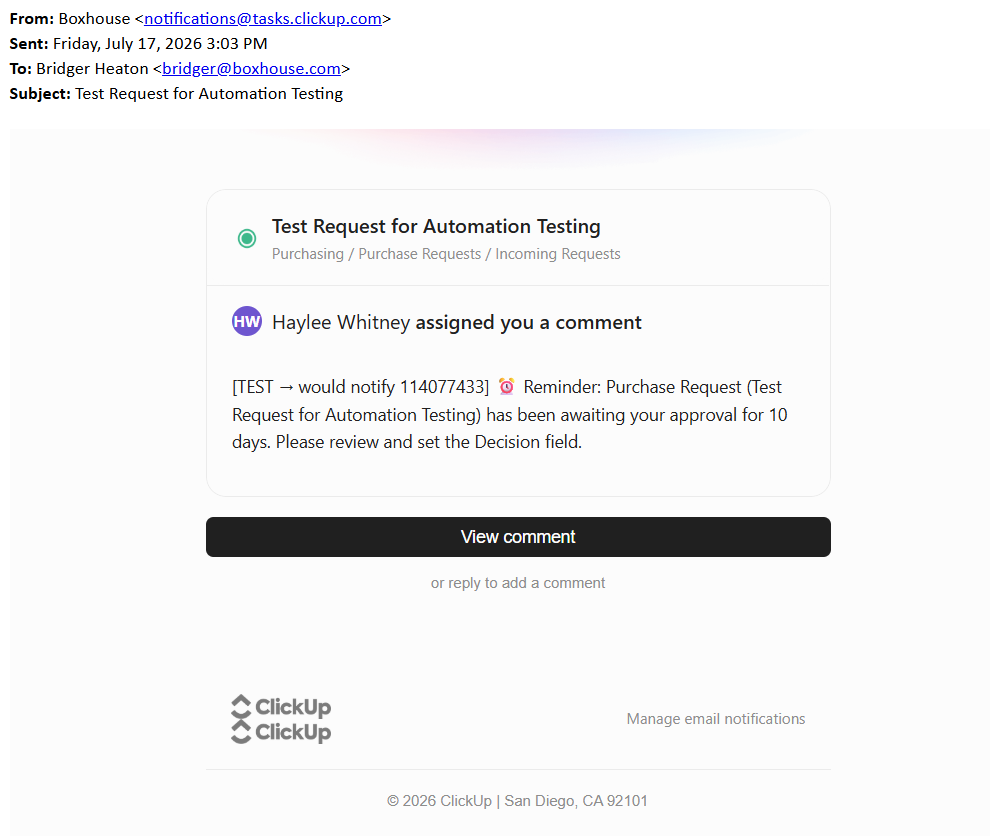
- Day 10 — it escalates to a controller as a final backstop
Result: nothing quietly gets stuck in someone's queue.
¶ D. PO creation — build the NetSuite PO (on "Create PO in Netsuite")
Once a request is approved - ready for po, Purchasing sets PO Action → "Create PO in Netsuite." That fires the workflow that:
- Reads the approved request.
- Looks up the matching vendor, subsidiary, GL account, and location in NetSuite.
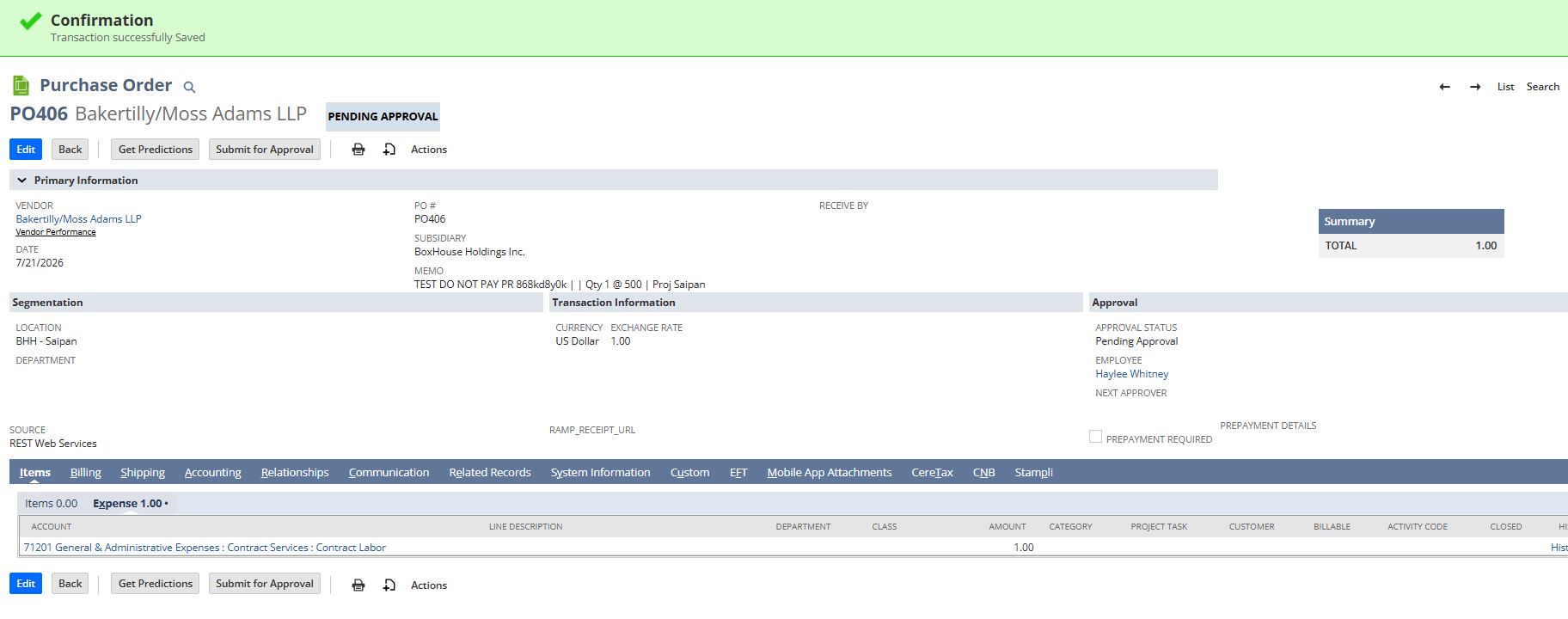
- Creates the Purchase Order, set to Pending Approval, with the expense on the chosen GL account.
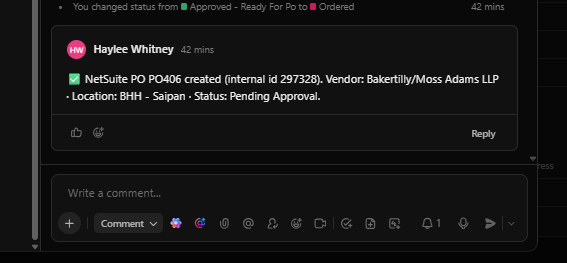
- Flips the request's status to ordered and posts a comment with the PO number, e.g.:
✅ NetSuite PO PO406 created (internal id 297328). Vendor: Bakertilly/Moss Adams LLP · Location: BHH - Saipan · Status: Pending Approval.
Result: a PO in NetSuite under the right subsidiary and location, ready for Purchasing to process — with zero manual entry.
¶ E. Error handling — nothing gets lost (behind the scenes)
Every workflow reports any problem (for example, a value that doesn't match a NetSuite record) to a central error log and leaves a note on the request, so issues get caught and fixed rather than failing silently.
¶ 5. End-to-end walkthrough
Putting it together, here's the full life of a request:
- Requester submits the intake form → task lands in Incoming Requests.
- Intake automation builds the approver chain and fills Approval Progress.
- Approvers set their Decision; routing automation advances the request. Reminders fire if anyone is slow.
- Last approval lands → status becomes approved - ready for po.
- Purchasing sets PO Action → "Create PO in Netsuite."
- PO automation creates the NetSuite PO (Pending Approval), flips the task to ordered, and comments the PO number.
- The PO is now in NetSuite for Purchasing to process the rest of the way.
¶ Status reference
| Status | Meaning |
|---|---|
| (manager review / purchasing review / in approval) | Working through the approval chain |
| approved - ready for po | Fully approved — ready to create the PO |
| ordered | NetSuite PO created; PO number is in the comments |
¶ Tips & gotchas
- Pick a postable expense account for the GL Code. The PO line has to post to a normal expense account. It can't post to a bank/cash account (e.g., 10000 Cash) or a summary/header account (e.g., 71200 Contract Services). Choose a specific, postable account such as 71201 Contract Labor. A wrong type won't create the PO — the request gets flagged instead.
- Pick vendor, subsidiary, and location from the dropdowns. They're populated from NetSuite, so a picked value will match. Typed-over or missing values are the usual reason a PO doesn't resolve.
- Choose "Purchase Order" as the Purchasing Method for anything meant to become a NetSuite PO. Credit Card / Reimbursement / Contract follow different paths.
- If a PO doesn't create, the request will have a comment explaining which value didn't match; fix it and set PO Action again.
- One PO per request. Once a request is ordered, re-triggering won't create a duplicate.
¶ Good to know (current state)
- The PO creation currently runs against the NetSuite sandbox while we finish validation, so POs created during the demo are test POs.
- Questions or something looks off? Reach out to Haylee — happy to help!