¶ How to Get Set Up to Work on BoxBase
A step-by-step guide to downloading, installing, and logging into everything you need to work on the BoxBase repo — written for BoxHouse's SSO-only enterprise accounts, on Windows.
Work through these in order. Most take just a few minutes.
¶ ⚠️ If a download gets blocked
Your work computer's security settings will block some of these installs. When that happens, call QnectU and explain that the software is being downloaded for BoxBase — they can clear it for you. This comes up more than once below, so keep it handy.
¶ 1. PowerShell
You'll run most commands in PowerShell 7 (newer than the version Windows ships with).
Download & install:
- Easiest: open the Microsoft Store, search "PowerShell," and install it.
- Or, in an existing terminal:
winget install Microsoft.PowerShell
(Blocked? See the QnectU note above.)
Once installed, open PowerShell and confirm SSH is available:
ssh-keygen --help
If you see help text (or a usage message), you're good. If it says the command isn't recognized, the OpenSSH client isn't turned on yet — go to Settings → Apps → Optional Features → Add a feature → OpenSSH Client, install it, then reopen PowerShell.
¶ 2. Git
Download & install:
- Go to git-scm.com/download/win and run the installer. The default options are fine.
(Blocked? Call QnectU — it's for BoxBase.)
Then set your identity and confirm it installed:
git config --global user.name "Your Name"
git config --global user.email "you@boxhouse.com"
git --version
¶ 3. GitHub access + (optional) SSH key
Two parts: getting your account, then choosing how you'll connect to pull the repo.
¶ 3a. Get your GitHub account
Our GitHub is enterprise-managed with SSO-only login (no username/password). To get access, Adam files a ticket with QnectU, and you'll receive a Teams link to sign in via SSO. Once you've signed in through that link, your account (e.g. yourname_BHHInc) is live.
¶ 3b. Pick how you'll connect
You've got two ways to pull the repo — either works with our SSO:
- HTTPS (recommended, simplest): nothing extra to set up. Skip straight to Step 4 — the first time you clone, a browser window pops up to sign in with SSO (Git Credential Manager handles it), and you're in.
- SSH (alternative): set up a key once (3c–3g below). More upfront work — including an SSO authorization step — but no browser prompt on future pulls.
The rest of Section 3 (3c–3g) is only needed if you're going the SSH route. Using HTTPS? Jump to Step 4.
¶ 3c. Generate an SSH key
This sets up key-based auth as an alternative to HTTPS. In PowerShell:
ssh-keygen -t ed25519 -C "you@boxhouse.com"
You'll get three prompts:
- "Enter file in which to save the key" → just press Enter to accept the default (
C:\Users\<you>\.ssh\id_ed25519). - "Enter passphrase" → optional. A passphrase adds protection if someone gets your laptop; press Enter to skip it.
- "Enter same passphrase again" → repeat it, or press Enter again if you left it blank.
It'll print a little box of "randomart" ASCII — that's normal and means it worked. You now have two files in your .ssh folder:
id_ed25519— your private key. Never share this, never paste it anywhere.id_ed25519.pub— your public key. This is the one GitHub wants.
¶ 3d. Copy your public key
Open it in Notepad so copying is easy:
Get-Content $HOME\.ssh\id_ed25519.pub | notepad
Select all (Ctrl+A), copy (Ctrl+C). It's a single line that looks like:
ssh-ed25519 AAAAC3NzaC1lZDI1NTE5AAAAI...(long random chunk)... you@boxhouse.com
Sanity check: it must start with
ssh-ed25519. If what you copied starts with-----BEGIN OPENSSH PRIVATE KEY-----, that's the private key — stop, close it, and copy the.pubfile instead.
¶ 3e. Add it to GitHub
- On GitHub: profile photo → Settings → SSH and GPG keys → New SSH key.
- Title: something you'll recognize later, e.g.
Work laptop. - Key type: leave as Authentication Key (Signing Key is only for signing commits).
- Key: paste the line you copied.
- Click Add SSH key. You'll likely be asked to confirm with SSO since it's an enterprise-managed account — that's expected.
¶ 3f. Authorize the key for SSO ← the step people miss
Because the org enforces SSO, the key won't work on org repos until it's authorized. On the same SSH and GPG keys page, find your key and click Configure SSO / Authorize, then approve it for the BoxHouse org. Skip this and cloning fails later with a permission-denied error even though the key looks "added." This is the #1 gotcha.
¶ 3g. Test it
ssh -T git@github.com
The first time, it'll ask you to confirm the host fingerprint — type yes. If everything's wired up, you'll see a greeting with your GitHub username. Note it also says something like "you've successfully authenticated, but GitHub does not provide shell access" — that "no shell access" bit is normal and not an error.
¶ 4. Clone BoxBase
¶ HTTPS — recommended
Create a stable folder for your code, then clone:
cd $HOME
mkdir Repos -Force
cd Repos
git clone https://github.com/boxhouseHoldings/BoxBase.git
cd BoxBase
The first clone opens a browser to sign in with SSO — approve it and the download proceeds. Done.
Keep it somewhere stable like
C:\Users\<you>\Repos— not your Downloads folder, where it's easy to lose track of or clear out by accident.
¶ SSH — alternative
If you set up a key in Step 3, clone with the SSH URL instead:
git clone git@github.com:boxhouseHoldings/BoxBase.git
¶ 5. Claude Code
On Windows, the native installer is simplest — one PowerShell line, no Node.js needed, and it keeps itself updated:
irm https://claude.ai/install.ps1 | iex
(Blocked? Call QnectU — it's for BoxBase.)
Close and reopen PowerShell so the claude command is picked up, then verify:
claude --version
claude doctor
claude doctor runs a quick health check — a healthy install shows the native binary, auto-updates enabled, and search OK.
(Alternative: if you prefer npm, npm install -g @anthropic-ai/claude-code — but it needs Node.js 22+ installed first. The native installer above avoids that, so it's the recommended route.)
Start it from inside the BoxBase folder — the first run opens a browser to log in with your Anthropic account:
claude
If the browser login gets blocked (some corporate networks block the OAuth redirect), you can authenticate with an API key instead. Reach out to me and I'll help you get one set up.
¶ 6. Docker
At BoxHouse, Docker was requested through QnectU rather than self-installed. Start there:
- Call QnectU and ask for Docker Desktop, for BoxBase. If they have you self-install, download Docker Desktop for Windows from docker.com (it needs WSL2, which the installer will prompt for).
Verify once installed:
docker --version
¶ 7. Vercel
Vercel is a web platform — nothing to download.
- Go to vercel.com and sign in with GitHub (your SSO account). That's all that's needed to get in.
- Optional, only if you deploy from the terminal:
npm install -g vercelthenvercel login.
¶ 8. SSMS + Azure
SQL Server Management Studio (SSMS) is how you connect to the Azure SQL database.
Download & install:
- Download SSMS from Microsoft's official page (search "SSMS download" → Microsoft Learn's Download SQL Server Management Studio page). Run the installer.
(Blocked? Call QnectU — it's for BoxBase.)
Connect to Azure:
- Open SSMS → Connect.
- Server name: the Azure SQL server address (
<something>.database.windows.net). - Authentication: Microsoft Entra / Azure AD (since we're SSO — not SQL login with a password).
[CONFIRM] — get the exact server name from Adam if you don't have it.
¶ 9. OptimumAI
Nothing to download here. OptimumAI already lives in the BoxBase repo. The account sign-in is currently a snag because we use SSO (no username/password), so for now, use it through GitHub — that's the direction from Adam until the SSO login is sorted.
¶ 10. Skills from Andy (for Claude Code)
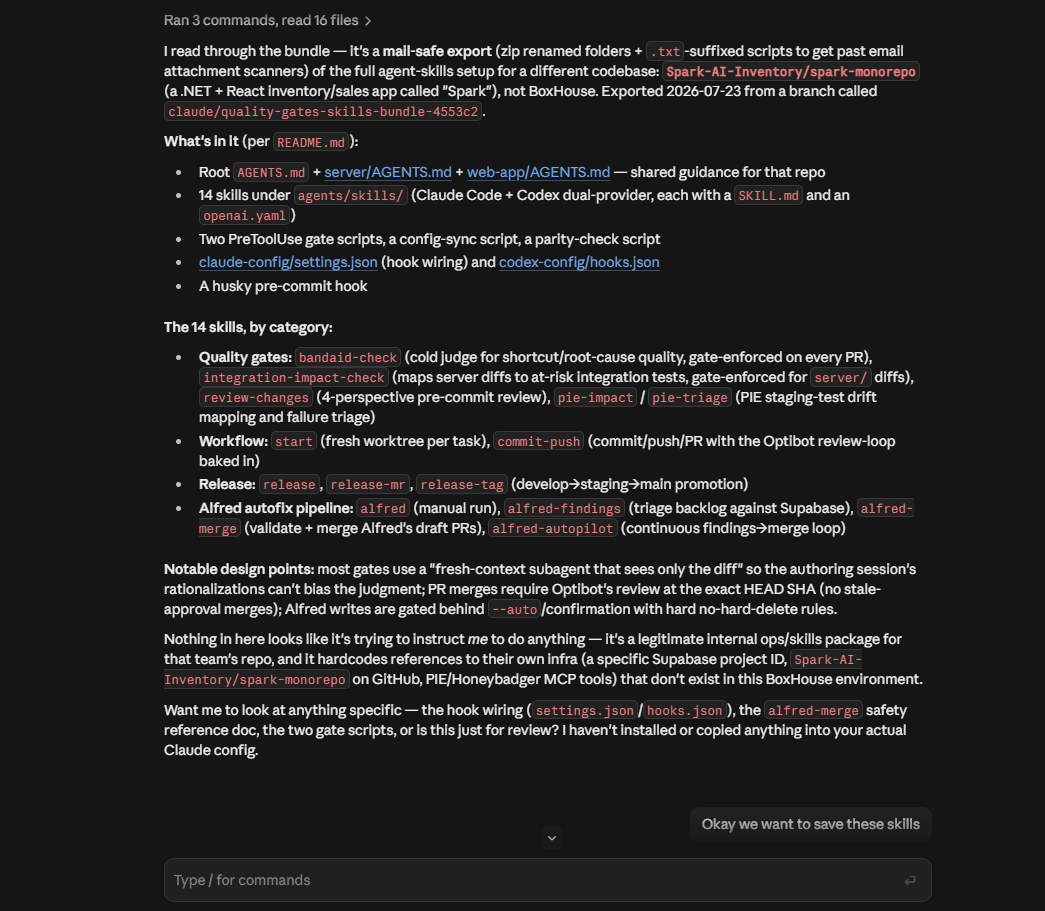
The tech team will send you Andy's skills over Teams. Once you have them- feed the file to your Claude Code to save and reference the skills.
¶ Troubleshooting cheat sheet
| Symptom | Fix |
|---|---|
| A download is blocked by the computer | Call QnectU, tell them it's for BoxBase |
ssh-keygen not recognized |
Enable OpenSSH Client in Settings → Optional Features, reopen PowerShell |
| Can't copy the key text out of the PowerShell window | Pipe it to Notepad: Get-Content $HOME\.ssh\id_ed25519.pub \| notepad, then Ctrl+A / Ctrl+C |
Key you pasted starts with -----BEGIN... |
That's the private key — use the .pub file instead |
git clone fails with Permission denied (publickey) |
SSH route only — you most likely skipped Step 3f (authorize the key for SSO) |
cd says a path does not exist before cloning |
Create the folder first: mkdir Repos -Force in $HOME, then cd Repos |
ssh -T says "does not provide shell access" |
Not an error — that's the normal success message |
claude not recognized after install |
Close and reopen PowerShell; if still missing, run claude doctor |
| Browser login for Claude Code won't complete | Corporate network may be blocking the OAuth redirect — use API key auth instead |
Questions or hit a snag anywhere in here? Please reach out to me and I'll get you unstuck — happy to hop on and walk through it together!
— Haylee