¶ Reserving the St. George Conference Room
This guide covers how to properly reserve the conference room in Outlook and how to enable screen casting or remote participant access via the in-room Mac Mini.
¶ Part 1: Reserving the Room in Outlook
-
Open a new meeting invite in Outlook (Calendar → New Event or New Meeting).
-
Add your attendees in the invitee field as you normally would.
-
Set your date and time, then navigate to the location field.
-
Add the room resource by typing
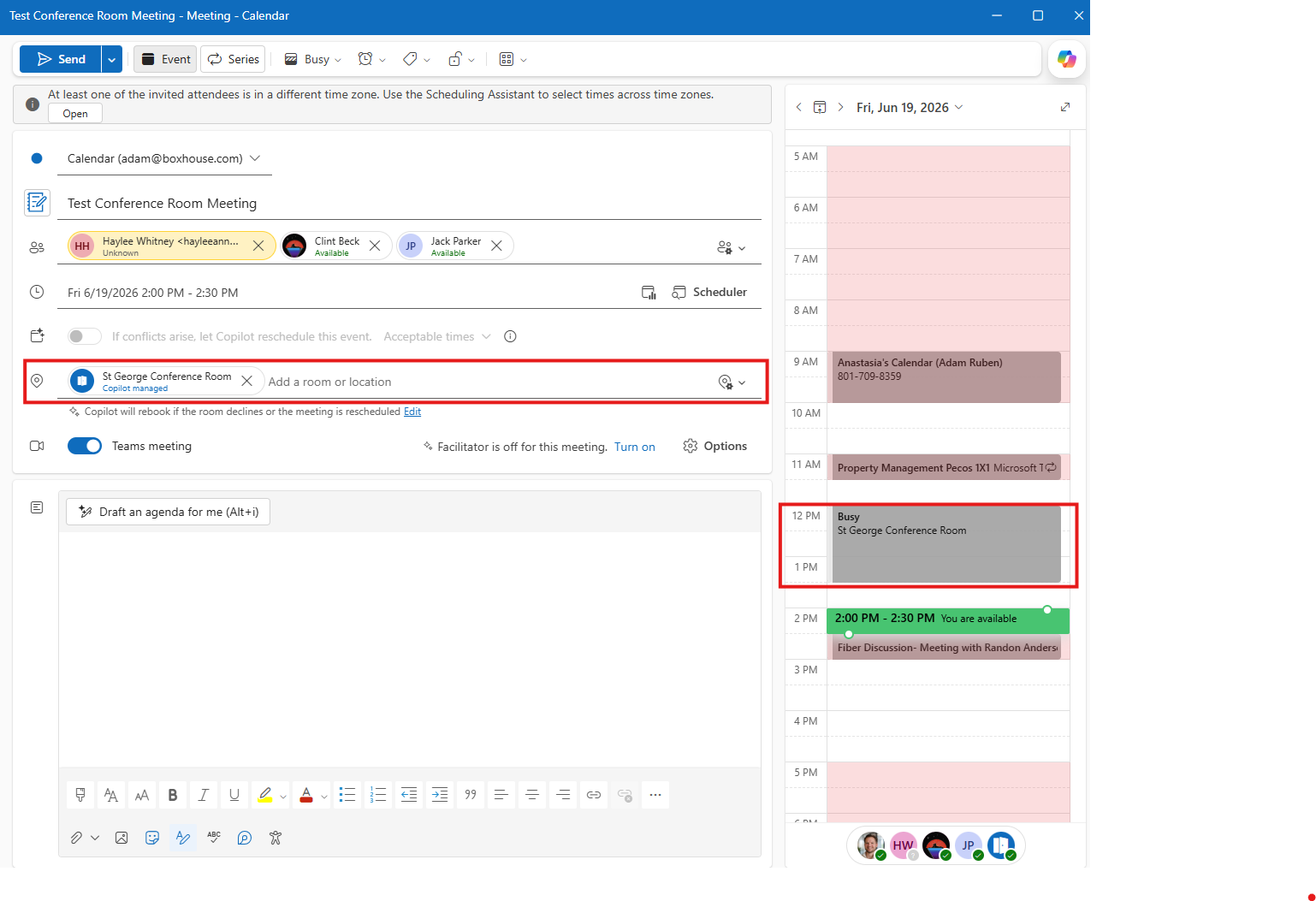
St George Conference Roomin the location/room field and selecting it from the suggestions. This reserves the room directly — do not just type the room name as plain text. (See the below screenshot.) -
Check for conflicts using the calendar panel on the right side of the meeting compose window. Before sending, confirm the room does not show a Busy block overlapping your selected time. If it does, adjust your time until the room shows as available.
-
Send the invite. Outlook will automatically send a reservation request to the room resource. If the room is available, it will be confirmed.
¶ Part 2: Enabling the In-Room Mac Mini (Teams / Screen Cast)
The conference room has a Mac Mini connected to the TV, signed into a dedicated Microsoft Teams account. By inviting that account to your meeting, the Mac Mini will automatically receive the Teams meeting — making it easy to cast your screen to the TV or allow remote attendees to join.
-
When composing your meeting invite, add
conferenceroom@boxhouse.comas an attendee alongside your other invitees. -
Ensure Teams meeting is toggled on in the meeting compose window (the Teams meeting toggle should be enabled — it is on by default for most calendar events).
-
Send the invite. The meeting will appear on the Mac Mini's Teams client in the conference room.
-
In the conference room, open Teams on the Mac Mini and join the meeting. From there you can:
- Share your screen to cast content to the room TV for local-only presentations.
- Host remote attendees who join via the Teams link, with the room TV displaying their video feed.
Tip: If all participants are local, simply joining on the Mac Mini and sharing a screen is the easiest way to get content on the TV — no cables or adapters needed.