¶ Salesforce
¶ Connecting Einstein Activity Capture (EAC)
Einstein Activity Capture automatically logs emails and calendar events to the relevant Salesforce records, eliminating the need for manual data entry. This keeps your activity history accurate and up to date without any extra effort from your team. The result is better visibility into customer interactions across the organization, helping sales reps and managers make more informed decisions.
Follow the steps below to connect your Microsoft 365 account to Salesforce via Einstein Activity Capture, enabling automatic syncing of your emails and calendar.
¶ Steps
Step 1 — Open Your Profile Settings
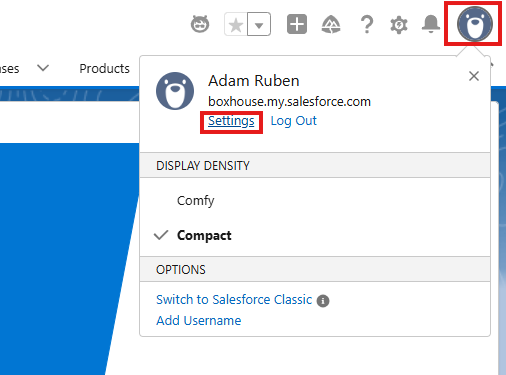
From any Salesforce page, click the View Profile button in the top-right corner of the navigation bar. In the profile dropdown, click Settings.
Step 2 — Open Connected Accounts
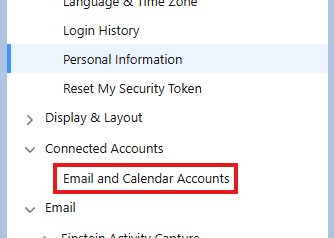
In the left-hand menu, navigate to Connected Accounts > Email and Calendar Accounts.
Step 3 — Add a New Account
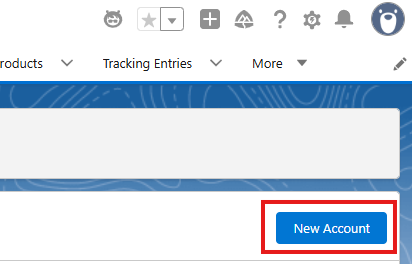
Click New Account to begin the connection process.
Step 4 — Select Microsoft 365
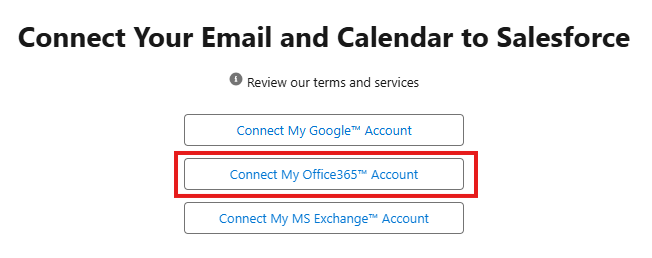
Click Connect My Office 365 Account.
Step 5 — Authenticate Your Microsoft 365 Account
Follow the on-screen prompts to sign in and authorize Salesforce to access your Microsoft 365 account. You may be asked to grant permissions for email and calendar access.
Step 6 — Allow Time for Initial Sync
Once connected, Salesforce will need a few hours to complete the initial sync of your emails and calendar events. No action is required — check back later and your activity data will begin appearing automatically.